





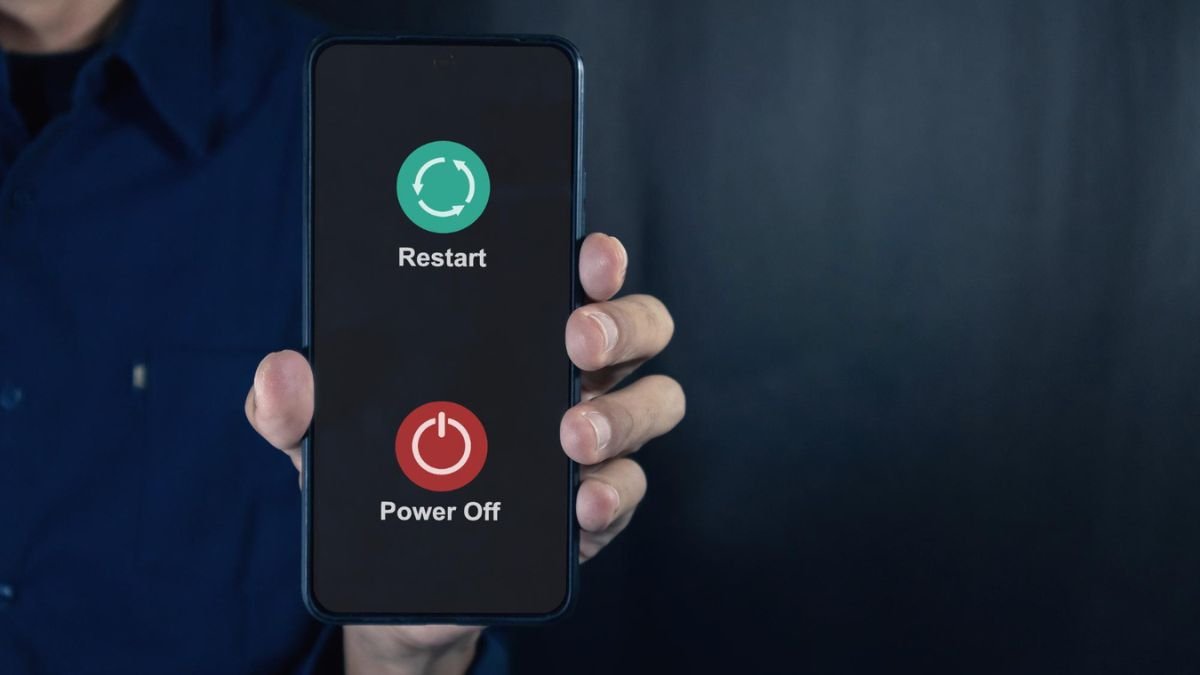
Smartphones are made to make life easier, but there are times when it is just the opposite. One of the most annoying scenarios may happen when your Android phone freezes out of the sudden, therefore ceases to communicate or refuses to turn on correctly. You tap the screen – nothing. You press buttons – no reaction. This article describes in an easy and understandable way how to restart Android phone in case it is frozen and stuck or is in a state in which it is totally unresponsive.
What Is a Force Restart?
A force restart (also known as a hard restart) is one method to shut down your Android device when your device is not responding. Unlike in a regular restart, it doesn’t require the screen or software to respond. Instead, it uses key combinations to be able to safely cut off the supply of power to the system and restart it without ending up with deleted data.
It’s just a stronger version of restarting your phone and does not get rid of your photos, apps and files.
When Do You Need to Force-Restart an Android Phone?
You should try a force restart if:
- The screen freezes and is unresponsive to taps and swipes
- The phone is pressed against a blank screen or a black screen
- Apps keep crashing over and over again
- Buttons and Touch control are not working
- The phone will not generally start/restart normally
- It gets stuck on the boot logo (Android logo, Samsung logo, etc.)
How to Restart an Android Phone?
The way that it would be done will slightly vary depending on the type of phone that is used (make, model, etc.); however, on most Android phones, there are similar key combinations. Here are the most common ways:
Restart with Power & Volume Buttons
This is the most used way, and this is for many Android phones like Samsung, OnePlus, Xiaomi, Motorola, etc.
Step-by-step:
- At the same time, press and hold the power button and the Volume Down button.
- Hold them for 10 to 15 seconds, till the screen goes black.
- Wait a while to be vibrated, or the phone does not start itself back up again.
- If it restarts, your phone has been successfully restarted forcefully.
If That Won’t Work: Try The Power Button Only
- Some phones simply require the power button to be held longer
- Individually press and hold the Power button
- Keep holding it for 15–30 seconds
- The phone should automatically turn on or off
This is a good way of doing it for an old model of Android or an inexpensive device.
Force Restart on Non-Removable Battery Phones
Most modern phones have batteries that cannot be removed. If your phone is stuck or frozen, simply try the above button combination method – do not attempt to open the phone or try removing the battery.
Popular Brands – Unique Ways to Restart
Samsung Phones
Power+Volume down hold for 10~15 seconds until the Samsung logo is displayed.
Google Pixel
The way to write it down is Power+Volume Down for 15 seconds or so.
OnePlus
Hold down the Power + Volume Up button and reboot the phone.
Motorola
By holding down the Power button, press and hold the Volume Down button for 10 to 20 seconds.
Xiaomi / Redmi / Poco
Hold the power + volume down key until the system has restarted.
What If Your Phone Is Still Not Powering On?
If even a force restart does not work, then try this.
Charge your phone
Sometimes, the device is turned off due to the battery’s power. Plug it in and just allow it to charge up for at least 15-30 minutes, and then try starting up again.
Connect to a charger, holding buttons
Some phones work better with a force restart when the phone is charging.
Try Recovery Mode
If your phone isn’t booting up normally, you can also do Android Recovery Mode by using key combinations like Power + Volume Up (varies depending on your phone model) to restart/fix your phone.
Contact support
If your device is down because of the hardware, you may need to have your device professionally fixed.
Things You Should Avoid
- Don’t keep clicking some random buttons, over and over
- Don’t try to take the battery out unless it is supposed to be removable
- Don’t install unknown apps/software when troubleshooting
- Keep from force restarting too frequently – a measure that will only need to be resorted to in exigent circumstances
Does Force Restart Delete Data?
A force restart does not destroy any personal information. It is absolutely safe, and it works in a way that resembles a stronger version of reboot. However, if you go to Recovery Mode and reset options, then that just might clear data – just be careful about that.
Tips On How To Avoid Freezing The Next Time
- Keep your phone updated
- Do not overload with too many background apps
- Storage clean-up and delete unused apps regularly
- Install applications from reliable sources
These little habits can help make your phone run smoothly and help reduce crashes or freezes.
Final Thoughts
A nonresponsive Android phone may be a stressful situation, but for the most part, the force-restart is all you need to bring your phone back to life. It’s easy, fast and safe – no tools, no technical knowledge. So just press those right buttons for a few seconds and give life to your device.
It will not delete your files, and in most cases, your phone will be back to normal functioning. If after several attempts with a force restart doesn’t work, then there is a chance that your phone has a deeper issue in terms of software or hardware issues that require professional help. But for the enormous majority of day-to-day freezes, the quick force restart is a good job.
Also Read: 6 Essential Things to Check Before Buying a Power Bank
About the Author
