





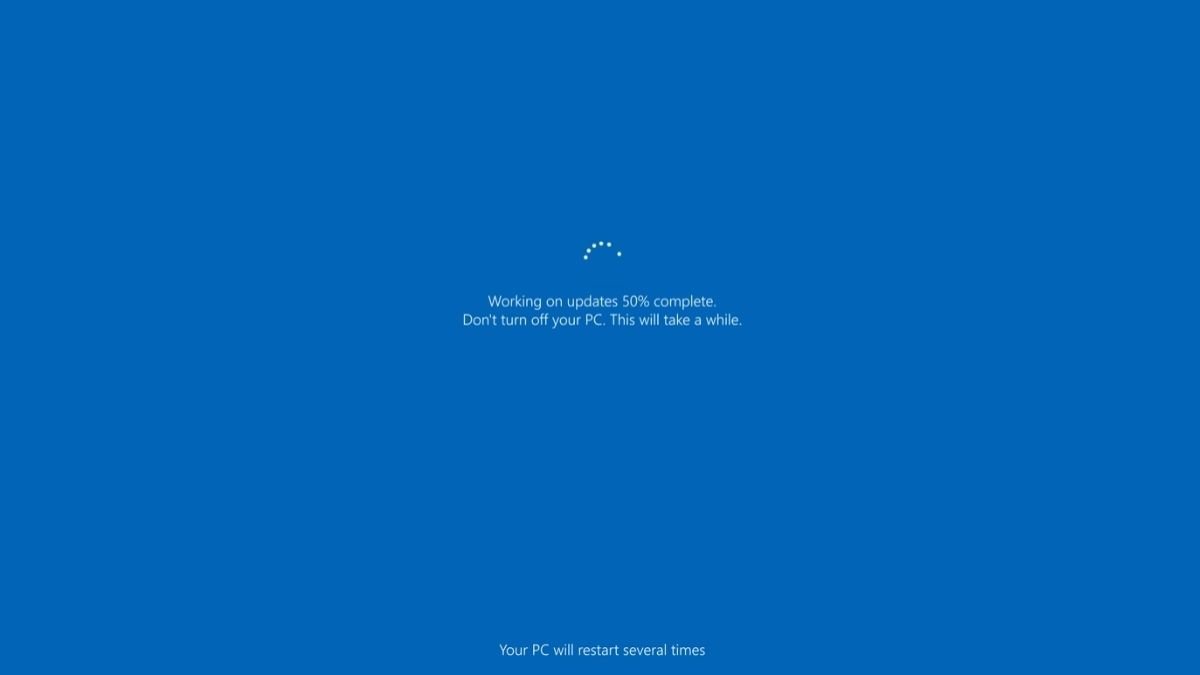
In this article, we’ll talk about what is a fake Windows update screen and why this tactic, how to identify a fake Windows update screen and how you can stay safe to make sure that you never fall for the trick.
If you have ever been using your PC and suddenly you see a window similar to the one below, you may think that it is just your system installing some important patches. After all, Windows updates are part of a normal process of keeping your computer secure and running smoothly. But not all update screens are genuine. Fake Windows update screens are an increasingly common issue – they trick people into downloading malware, giving up personal information or getting unauthorized access to someone’s machine, etc.
What Is A Fake windows Update screen?
A fake Windows update screen is a fake interface that is used to mimic the real Windows update screen. The cybercriminals configure these fake screens with the intention of emulating the appearance and feel of a real Windows update process. Their target is to trick the user into thinking that the computer needs installation of much-needed security updates or critical patches.
When they are following the instructions on the screen, i.e., click on a button, download file, enter some credentials etc, the user will normally end up with the installation of the malware, Ransomware, Spywar,e or installation of remote access on their system for the attackers.
Such fake screens might be of the form:
- In a browser box that fills the entire screen, and has the appearance of an update box
- As a message popped up while surfing the web
- While combining undefined source software from
- After clicking on a link in an email or advertisement
The reason for why the attackers are banking on the trust that the average user would have in the official Windows update messages that what they find in appearance wouldn’t be questioned.
Why Hackers using False Update Screens?
Fake update screens do work but it’s because of trust and usage. Most end users know the regular updating and the applying of fixes to Windows – sometimes it does it automatically and other times with the reminders that look a lot like the ones that the attackers mimic.
Here’s why this technique is appropriate for the attacker:
- Individuals are expecting updated screens; they believe in them
- The design is based on official Microsoft documentation
- Users respond automatically to the prompts to “Install now” – often.
- Frauds create to you a feeling that you are in a situation that demands to act e.g., “Your system is at risk!”)
By presenting a familiar interface, attackers help to reduce the suspicion and increase the likelihood that users will comply with the action – in many cases, unwittingly installing incriminating software.
Examples of Techniques of a Anonymous Updates
In-Browser Fake Screens
One of the common form in is Web browser. A webpage is loaded, and immediately a full-page interface that looks like a Windows update page sets in. If you click anywhere or try and close the window you may get more prompts, redirects or downloads.
While it is obvious to the users, the savvy users can also be fooled if the layout, colors, and wording is that of an actual system update.
Phishing Emails
Another way is via phishing emails that tell you that you have to do an important Windows update and you forget to do it. These emails have links to fake screens of updates hosted on a page.
Once the user indulges, the malicious files start downloading.
Infected Tools or Apps
Sometimes the crackers will package fraudulent update screens with cracked download applications, pirated files or “free” downloads. When users open these unsafe files the fake update opens and prompts users to take actions that install the malware.
What to Do for Seeing a fake Update Screencast
If you receive the suspicious “update” message, do the following:
1. Don’t Click Any Buttons
Do not click on any download linking, buttons or requests from the page
2. Close the Browser Tab
Or try closing the tab/browser window immediately. If it will not close normally, then use your Task Manager (Ctrl + Shift + Esc on Windows) to force close the browser.
3. Run a Security Scan
Use a good anti-virus/anti-malware to scan your system. This helps to make sure that no malicious files have been downloaded.
4. Check – Using Windows Settings
If you think that it is really necessary for your system to be updated, you should check using the official way:
- Go to Settings
- Select Update & Security
- Click Windows Update
- Check for available updates
No update will indicate there’s an update if there is one that’s legitimate.
5. Get Update Programs from Official Sources Only
Install only updates that are coming straight from your system’s update mechanism or verified developer tools
Protecting Yourself From This Threat
Here are some good practices in mitigating the risk of engineering against fake update screens:
- Using Security Software that is Up-to-date
Good antivirus and anti-malware programs are able to detect and prevent the visiting and downloading of malicious sites.
- Keep Your Browser Updated
Phishing and fraud protection are some of the features of modern-day browsers. Keeping them up to date helps to prevent fake pages.
- Avoid Clicking on Unknown Links
Never click on links sent in emails or messages that you don’t expect to receive that say it’s an urgent update.
- Install Software From Reliable Sources
Only download applications from verified sources like Microsoft Store, verified vendor websites or repositories.
- Educate Yourself and Others
Understanding the functioning of legitimate updates makes the identification of anomalies easier.
Conclusion
Fake Windows update screens are a form of social engineering – using the design, and using the language you know from to talk to you into doing something that will harm your device. Message may be official, but it’s meant to mess with your trust.
By knowing how the Windows update process works, how to identify the fake prompts and how to protect yourself, you can be protected online. When in doubt, always use the settings on your system to check for updates, rather than clicking on screens that accomplish the same task in unexpected ways.
Keep your system up to date using official methods and good security practices ,make sure that you receive the benefits of updates – and none of the dangers from fake updates.
Also Read: How to Deactivate Instagram Account Temporarily
About the Author
